Posts

Showing posts with the label AWS

AWS From Scratch 05 - Terraform
Image
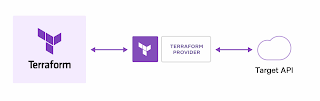
 AWS From Scratch 05 - Terraform One of the primary reasons for installing the AWS CLI was to allow us to write scripts that create our cloud infrastructure: storage, compute, databases, and other services. This allows us to document what we build. It allows us to reliably repeat the exact same steps for building virtual machines, and other related infrastructure so we can tear it down and rebuild it at will. It also allows us to keep track of changes that we have made to our environment over time. We call this infrastructure as code. Infrastructure as Code AWS has it's own scripting language to define infrastructure as code called CloudFormation. HashiCorp has also developed an scripting language called Terraform, the benefits of Terraform is that it can be used on other cloud providers, making it more flexible. Installing Terraform Terraform has great documentation , but I'll summarize the Mac installation process here. Open up the Terminal.app and type the following command ...

AWS From Scratch 04 - Command Line Interface

Image
AWS From Scratch 04 - Command Line Interface Up to this point I've showed you how to interact with AWS using a web browser, and although this is convenient, it is not always the best tool for the job. This post will discus how to work with AWS just by typing commands into the terminal, and for the sake of simplicity, I will be focusing on the Mac OS. Homebrew Before we get going, make sure you have Homebrew installed. We will use the Homebrew package manager to install the AWS command line interface (cli). Install the AWS CLI The installation process is simple when using Homebrew. Just open up a terminal an type: brew install awscli Once the installation is complete Configuration If you have been following along with this series, you should have created a sandbox account and assigned administrative privileges to the IAM user you created (in my case the user name is alex). Get your access keys from the AWS access portal. Open your AWS access portal (See Login with Identity Center...

AWS From Scratch 03 - Account Setup

Image
AWS From Scratch 03 - Account Setup Recap In AWS From Scratch 01 & 02, you created a new AWS account, Created an Organization to manage your account, and created an administrative user. You have followed the recommended best practices for creating accounts and users so far. Now you will continue following best practices by configuring your management account, and then add a sandbox account to work on project development. Management Account The management account should only be used to manage the organization and member accounts. It should not contain workloads or resources used by workloads (databases, files, etc.). Customizing the AWS access portal URL When you login using your non root administrative user, you use the Access Portal URL that was created when you enabled IAM Identity Center. The url contains numbers and letters and is not easy to remember (which is why you were asked to bookmark it). To change the URL into something more meaningful, login as the admin user and go t...

AWS From Scratch 02 - Securing your Account

Image
 AWS From Scratch 02 - Securing your Account Now that you have signed up for AWS and provided your credit card information, you want to make sure that your account is properly setup and that you are using the best security so that your account is less likely to be hacked. The Root User When you first create your account you setup a password for the root user, which is the super user for the account. The root user has full access to everything in the account, including billing. It's best practice to not use the root user for daily tasks. In a large organization multiple users will be created each with a small portion of the permissions of root. So for example a developer might have certain privileges needed for just the type of development they are doing, while an accountant might only have access to the billing information. There are very few tasks that require you to login as the root user, for everything else you should create another user. Securing Root The first thing we should...